Architecture
How ganymede-ui is put together: a web app built from JupyterLab's notebook packages, a few ways to get kernels and notebooks, and a Mac and iPad app that wrap it. This page describes main; the latest release may not have all of it (see the changelog).
ganymede-ui is a client of Ganymede's API, as the User interfaces page asks of any UI. Nothing here is in Ganymede's Rust core, and the app runs against any Jupyter server that speaks the same REST and websocket API.
What it is built from
- JupyterLab is Jupyter's own web UI. Its features ship as npm packages:
@jupyterlab/notebook(the notebook widget),@jupyterlab/cells,@jupyterlab/rendermime(output renderers),@jupyterlab/codemirror(the editor), and more. Inside JupyterLab they are loaded as plugins into an application built on Lumino, JupyterLab's toolkit for widgets, commands and plugins. ganymede-ui uses the packages as plain libraries instead, with no JupyterLab application: it renders the same notebook, and does by hand the wiring JupyterLab's plugins would do. @jupyterlab/servicesis the client half of the Jupyter server API (REST and websocket). ItsServiceManagerbundles one manager each for contents (notebook files), kernels, sessions (which kernel belongs to which file) and kernelspecs (which kernels can be started). It is the only way ganymede-ui reaches notebooks and kernels.- JupyterLite is Jupyter with no server: everything runs in the browser. Its
@jupyterlite/servicespackage answers the same server API from inside the page, stores files in the browser, and runs kernels in Web Workers, so@jupyterlab/servicesworks against it unchanged. ganymede-ui uses only that package, not JupyterLite's application, to run kernels without a server: the rest of the app sees an ordinaryServiceManagerand doesn't know the difference. This is how the browser mode works (see In-page server and kernels). - cdp-kernel (tlockney/cdp-kernel) is a TypeScript and JavaScript kernel. Its browser build runs the kernel in the page with no Node or Deno, and is the default in-page kernel.
- React draws the app around the notebook (sidebar, toolbar, sheets), Vite builds it, and Workbox, a service-worker library, makes it an installable app that works offline (a PWA).
The parts
| Part | Where |
|---|---|
| Backends | src/lib/backends.ts |
| In-page server and kernels | src/lib/lite.ts, src/lib/cdp-kernel.ts |
| Service-worker relay | src/lib/lite-sw.ts, public/lite-service-worker.js |
| Notebook | src/components/NotebookPane.tsx, src/lib/jupyterlab.ts, src/lib/widgets.ts |
| Shell | src/App.tsx, src/components/, src/styles/ |
| Build and PWA | vite.config.ts |
| Agent (optional, off by default) | packages/agent/, src/components/SettingsSheet.tsx |
| Mac and iPad app | apple/ |
Backends
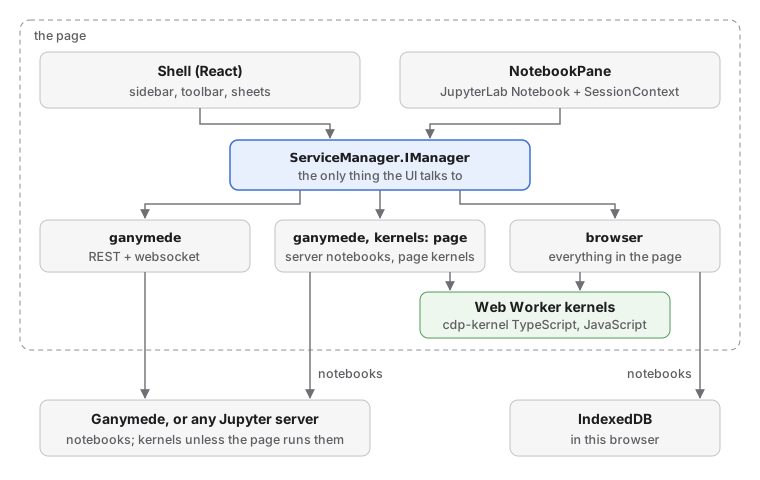
The UI talks to one object, a ServiceManager.IManager from @jupyterlab/services: contents, kernels, sessions and kernelspecs. Anything that can build one is a backend. connect(config) in backends.ts builds it from a BackendConfig:
ganymede: the stockServiceManagerover REST and websocket, aturlwithtoken. An emptyurlmeans this page's origin, which is how the app runs when Ganymede serves it (ganymede serve --static-dir,ganymede ui) and undernpm run dev, whose proxy forwards/api.connectasksapi/statusfirst, so a wrong token fails with a message instead of a hung kernel list.ganymedewithkernels: 'page': notebooks on the server, kernels in this page. It builds the in-page server below with aContentsManagerpointed at the server. This is for a server that has no kernels of its own.browser: everything in the page. Notebooks are stored in IndexedDB, kernels run in Web Workers. Nothing is sent anywhere.
Where the app connects is decided in this order (App.tsx):
?token=or?kernels=page|both|serverin the URL, asganymede serveprints it and the Apple apps pass on every launch. They are removed from the address bar once read.- The connection saved in
localStorage(ganymede-ui:backend), with its token fromsessionStorage(ganymede-ui:token); the token never goes inlocalStorage. - A login cookie for this page's server: when
api/statusanswers, the app connects to its own origin with no token. - Otherwise the connect sheet asks.
The URL can also say what to open, as an Apple app window opened on one file does: ?open=<path> opens that notebook once connected, with the sidebar closed, and ?dir=<path> is the folder the sidebar lists on that first connection (by default the notebook's folder, or the server's root). Paths are relative to the server's root; leading, trailing and repeated / are dropped, so an absolute path works against a server rooted at /. readLaunch (src/lib/launch.ts) reads both once. Both then stay in the URL, kept in step with the open notebook and the folder the sidebar shows (dir is left out when the page would start there anyway), so a reload comes back to both. New notebooks go in the sidebar's folder. Picking another backend in the connect sheet drops both; retrying the same server there (say with a corrected token) keeps them. The page title is the open notebook's name.
Switching backends disposes the old ServiceManager. A server's kernels keep running, as they do when a notebook closes, and show under Running when the app connects to that server again. Kernels in the page have nowhere to come back to, so the in-page manager shuts them down first, which terminates their Workers.
In-page server and kernels
This is the JupyterLite part: a stand-in for a Jupyter server that runs in the page, so kernels can run with no server at all. JupyterLite's own application assembles it from Lumino plugins. ganymede-ui has no plugin system, so createLiteServices in lite.ts wires the same @jupyterlite/services classes by hand and returns a ServiceManager, as connect does for a real server:
LiteKernelClient,LiteSessionClientandLiteKernelSpecClientanswer the kernel, session and kernelspec APIs in the page. Kernel websockets are faked withmock-socket, a library that stands in forWebSocketinside the page.- Contents come from
BrowserStorageDrive(IndexedDB, the browser's database, through thelocalforagelibrary), or from the server'sContentsManagerinkernels: 'page'mode. - Events and the user identity stay in the page (
LocalEvents,LocalUser), since nothing answers/api/eventsor/api/mehere.
Two kernels are registered:
TypeScript (cdp-kernel),
cdp-browser, the default.CdpBrowserKernelwrapsstartBrowserKernelfrom@tlockney/cdp-kernel/browser: the kernel's message handling runs on the page and cells run in a module Worker. It answers every request itself, so messages pass through as Jupyter JSON. The wrapper copies the parent's session id into replies, whichLiteKernelClientroutes on, andCdpAwareKernelClientsends interrupts as aninterrupt_request, since JupyterLite's own interrupt only cancels its message queue. The app serves the librariesjupyter.chartimports (vega, vega-lite and linkedom) fromkernel-modules/, built byscripts/kernel-modules.ts, and maps cdp-kernel's specifiers to them with the kernel'smodulesoption, so charts draw offline. The apps' kernel page does the same.jupyter.sqlworks the same way for DuckDB's module, which is served fromkernel-modules/too. DuckDB's wasm and worker are 36 MB, so they don't ship in the app. Instead,src/lib/duckdb-files.tsfetches them from jsDelivr into the page's Cache Storage the first time the page is online. Kernels started after that get them as blob URLs, so SQL runs offline. Until then, the kernel loads them from jsDelivr.JavaScript (Web Worker),
javascript, from@jupyterlite/javascript-kernel.
Service-worker relay
A kernel in a Worker that needs a synchronous answer from the page (reading or writing a notebook file, input()) makes a synchronous XMLHttpRequest to api/drive or api/stdin/kernel. The page can't answer that directly, so a service worker catches the request and relays it on the /sw-api.v1 BroadcastChannel. ServiceWorkerBridge in lite-sw.ts answers on the page side: drive requests from the contents manager, stdin from the kernel client. The kernel puts the page's browsingContextId in each request and the relay adds a requestId; tabs and kernels share the channel, so the bridge skips other pages' requests and the relay matches the reply on both.
The Worker is blocked until its request is answered, so every request gets an answer. The bridge answers null when a request fails, when it has no handler for it, and, for whatever is still pending, when it is disposed. The relay answers null itself when a drive request gets no answer in 30 seconds; stdin requests wait for a person, so they have no limit. DriveFS turns null into EINVAL.
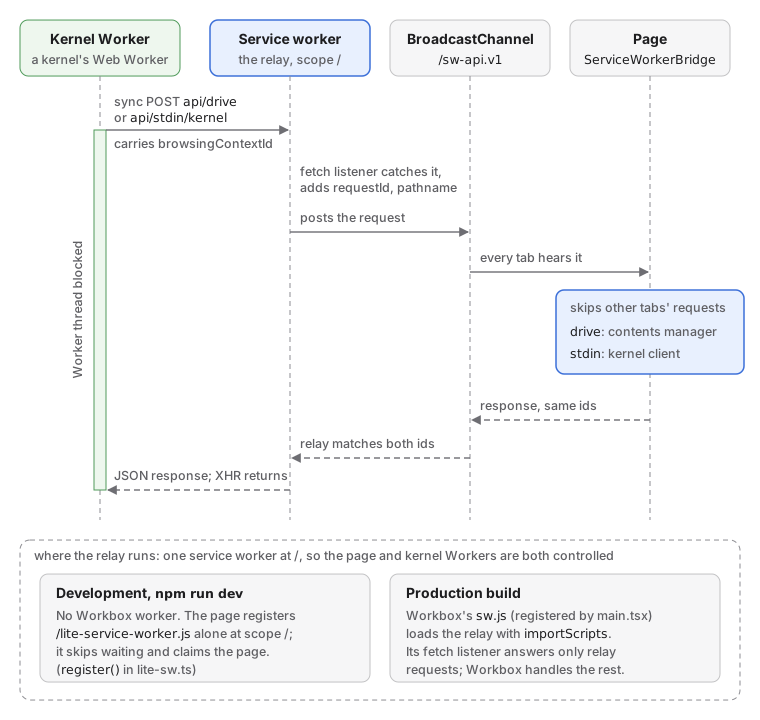
An origin has one service worker per scope, and the kernel Workers must be controlled by it too, so the relay can't have a scope of its own. In the production build Workbox's worker loads it with importScripts (vite.config.ts); npm run dev has no Workbox worker and registers public/lite-service-worker.js alone. The relay is the relay part of JupyterLite's service worker, adapted.
Notebook
NotebookPane shows one file. It holds JupyterLab's Notebook widget, its NotebookModel, and a SessionContext, which rejoins the kernel already running for the file but starts none on open: reading a notebook shouldn't start a kernel. The first run (toolbar, Shift+Enter, any run command) starts the kernel the file names, or the default when it names none; until then the toolbar says the kernel "Starts when you run a cell", and picking another kernel only changes which one that is. A kernel the file names that isn't installed here (a Python notebook with no Python) is not swapped for another: the toolbar shows it as not installed, and a run asks for a kernel to be picked. It loads and saves nbformat through the backend's contents API and gives the toolbar a NotebookController (run, interrupt, restart, change kernel, save, download, trust). A failed action shows its error in the pane.
problems.ts turns failures into what the pane's notice says: what happened, and the next step as a button (Restart for a dead kernel, Retry for an unreachable server, a lost kernel connection or a failed save, a kernel picker for a missing kernelspec). Restarting a dead kernel starts a new one of the same kind, since a dead kernel's connection can't restart it. run-status.ts shows, on the cells, which one the kernel is running (with its time and an Interrupt button) and which are queued behind it. JupyterLab marks every cell sent to the kernel as running, and a kernel runs them in order, so the first one still marked is the one running.
NotebookSaver (saver.ts) does the saving, as JupyterLab's document context does: one save at a time, a check of the file's last_modified before writing (a conflict when it is newer by more than 500 ms), and the dirty flag cleared only if no edit arrived during the round trip. The save sends the loaded last_modified too, which Ganymede checks again under its save lock (409). The pane autosaves a dirty notebook every 120 seconds and when the page is hidden, and asks on beforeunload. changedOnDisk runs the same check in the save queue, so the pane's own write is never taken for another's; the pane calls it every 5 seconds while the page shows and on focus and visibilitychange. A change, or a save that meets one, locks the pane: no save writes until Reload (the load effect runs again; the teardown drops the edits and leaves the kernel, which the new session rejoins) or Unlock (accept takes the version on disk that locked it as the saver's base, so saves write over it and the checks go on: a newer change locks again). Before locking on a change the check found, the pane tries pull: in the same queue, with no unsaved edit and no code cell running, it fetches the file and loads it into the existing model with fromJSON (same notebook widget and session, so the kernel stays; scroll and active cell are put back), then takes the file's time as its base. An edit typed during the fetch, or a cell that starts running, makes it give up and lock instead (#508).
On a Ganymede server the pane opens the notebook in its document room instead (#183, room.ts). NotebookRoom.join asks PUT /api/collaboration/session/{path} for the file id and the server's session id, connects a y-websocket (y-websocket's WebsocketProvider) to /api/collaboration/room/json:notebook:{id}, and waits for the first sync. The notebook model is built on the room's YNotebook (collaborationEnabled), so edits flow both ways as they happen and the dirty flag is the room's shared state.dirty, which the server clears when it saves. RoomSaver stands in for NotebookSaver: a save sends jupyter-collaboration's raw save message and waits for its answer (failed when a merge let the file win a cell; a dropped connection fails it at once, since the answer can't come on the next one), a move just follows the rename (the server moves the room's file id), and there is never a change on disk, so the pane skips its disk check and its 120-second autosave.
The server's closes: 4404 (file deleted) stops saves and says so. A 1003 unknown_session means the server restarted and rebuilt the room from the file; this document's history can't merge into the new room (its item ids collide with different content), so the room stops and the pane opens the notebook again, as Reload does, with a notice if it had edits the server hadn't saved. A close during the join fails the join at once. If the join fails (a server without rooms, a refused room) or the first sync takes over 15 seconds, the pane falls back to the contents API. The room is disposed after the model, since it owns the model's shared notebook, and also when opening fails after the join. A save while the connection is down waits up to ten seconds for it to come back and sync, so edits made meanwhile reach the server first; the save made when switching files relies on this. A refused close stops saves, as a deleted file does.
Trust: the server doesn't put trusted marks in the room; it decides trust when it saves. So on open the pane reads the file through the contents API, as the server marks it, and trusts each code cell it marks trusted, by id (trustFromFile). It sets that trust in this page only (trustHere): JupyterLab's own way writes into the shared document and would mark the notebook edited for everyone. Outputs another client writes into a cell this page has (an agent's run through the server, or a change on disk the server merged) take that cell's trust away here (watchRemoteOutputs); a cell another client inserts keeps its shared metadata.trusted mark, described below. While some outputs are untrusted, the pane reads the file again two seconds after the room's saves settle, since the server trusts outputs from its own runs, and drops a read that outputs changed during. The other way, a room does share trust: JupyterLab's cell model writes metadata.trusted into the shared cell when a cell is trusted (this page ran it, or Trust Notebook), and every client of the room reads it there. So a cell trusted in one window is trusted in the others, even one holding an unsigned file's outputs the server wouldn't trust. The server ignores the mark when it signs the file. A new notebook's room has no cells, so the pane adds an empty code cell, as fromJSON does for a file.
Inside JupyterLab, the editor, renderers and commands come from plugins. jupyterlab.ts builds them once and shares them across notebooks: the CodeMirror registries, a rendermime registry with JupyterLab's default MIME extensions (Markdown, MathJax, JSON, JavaScript), the notebook commands with JupyterLab's default shortcuts, and attachEditing, which adds kernel completion (Tab), inspection tooltips (Shift+Tab), find and the cell toolbar. Every binding is listed once in shortcuts.ts, which also drives the shortcuts sheet and stores custom keys in localStorage.
ipywidgets load with the first notebook, as their own chunk (widgets.ts). JupyterLab's widget plugin needs the application and a document context, so the app uses KernelWidgetManager, the manager JupyterLab uses for consoles, one per kernel. Widget state is written to the notebook's metadata before each save.
Without a kernel, widgets render from that saved state, as nbviewer and VS Code show them and JupyterLab doesn't: a manager with no kernel builds the models without comms, so a slider moves and jslink holds, but nothing reaches the kernel. When a kernel starts, its manager renders new outputs and also loads the saved models the kernel doesn't have, as JupyterLab's notebook manager does, so a save keeps them. Widget outputs drawn from the saved state render again then, so a kernel the session rejoins drives them. The widget-view renderer is not safe, as in JupyterLab (an HTML widget's value is HTML), so a notebook nobody trusted shows its widgets' text until Trust Notebook.
Trust follows Jupyter's model: the server marks cells trusted when it serves a signed notebook, and Trust Notebook in the toolbar calls POST /api/contents/{path}/trust. The browser backend keeps no signatures, so trust there lasts while the notebook is open.
Trusted HTML and JavaScript outputs don't render in the app's document, as they do in JupyterLab: output-frames.ts swaps their renderers for ones that put each output in an iframe with sandbox minus allow-same-origin (an opaque origin: no cookies, storage or app DOM), a meta CSP, and the content in srcdoc. The frame's one message out is its height, accepted only from that frame's window. Untrusted HTML still renders in the page through JupyterLab's sanitizer; Markdown outputs are always sanitized, since trusted Markdown would run its HTML's scripts in the page; SVG renders as an <img>, untrusted too (JupyterLab refuses untrusted SVG, which hid every SVG plot in a notebook made elsewhere), since an image runs no scripts and loads nothing. ipywidgets still render in the page.
Long stream and error outputs scroll inside a box 32em high instead of growing the notebook, and table cells use tabular figures so columns of numbers line up. e2e/reading.spec.ts screenshots notebooks made elsewhere (e2e/fixtures/reading, built by scripts/make-reading-fixtures.py with a real Python kernel) in light and dark, to check how the app reads them.
Shell
React components in src/components/ draw a macOS-style window: a translucent source-list sidebar (the backend's files), a unified toolbar, and sheets for connecting and for shortcuts. src/styles/app.css styles the shell. JupyterLab's light and dark --jp-* variables follow the system setting (theme.ts), and src/styles/jupyter.css overrides some of them so the notebook matches the shell. Restyling through those variables works; changing Lumino's layout does not, so the notebook scrolls itself.
Build and PWA
Vite builds the app (npm run build, output in dist/). vite.config.ts adapts a few webpack habits of JupyterLab's packages: SVG imports as strings, ~pkg/ paths in stylesheets, and MathJax's CommonJS modules. It also dedupes React (JupyterLab's packages bring React 18 copies of their own). The build target is Vite's default baseline (at Vite 8, Baseline Widely Available: Chrome and Edge 111, Firefox 114, Safari 16.4); every web view the Apple apps run in (macOS 26, iOS 26) is newer.
vite-plugin-pwa adds the manifest and a Workbox service worker that precaches the app, so it works offline and installs as an app. /api/ is never cached. The release is this dist/ as a static site (ganymede-ui-X.Y.Z.tar.gz and .zip), which ganymede ui install downloads; see releasing.
Agent
An optional agent (ganymede-ui#123) built on Pi Durable (@earendil-works/pi-durable) lives in packages/agent. It is off by default and turned on in the Settings sheet (the sidebar's settings button, or a ganymede:show-settings window event).
settings.tsholds the settings (provider, model, a local server's URL) and the API keys. The app imports it up front, so it has no Pi runtime code. Settings go inlocalStorage; a key goes insessionStorage, orlocalStoragewhen the person asks to remember it, behind pi-ai'sCredentialStoreinterface. Keys never go in IndexedDB: kernel Workers on the page's origin can open IndexedDB but have no Web Storage. In the Apple apps,KeychainCredentialStorekeeps keys in the Keychain behind the same interface: it asks the app'sagentKeysscript message handler, which answers only the main frame on the origin of the page the app loaded, and only for the four providers (ganymede-ui#166). An HTML file opened from/filesdoesn't pass: Ganymede serves/fileswith a sandbox CSP (since 0.6.0, ganymede#298), so the file runs on an opaque origin. The Settings sheet then shows no "Remember" choice.The iPad and iPhone apps edit the same settings on their own Settings screen (ganymede-ui#210): the app calls
window.ganymede.call(src/lib/native-agent.ts) to read and save them, list a provider's models and run Test, and writes the key to the Keychain item the page reads. The page's Settings sheet stays for the browser and the Mac.models.tsbuilds pi-ai's models for the chosen provider: Anthropic, OpenAI, Google, or a local OpenAI-compatible server (Ollama, LM Studio). The app loads it with a dynamicimport()only when the agent is on. Its chunks, and chunks reached only through it, are namedagent-*, and the PWA caches them on first use instead of precaching them for everyone.index.tsandtools.tsare the spike's harness and notebook tools (ganymede-ui#124); the agent panel that uses them comes next.
Mac and iPad app
apple/ is a SwiftUI app for macOS and iPadOS (and iOS) built from one set of sources. XcodeGen generates the Xcode project from apple/project.yml. It runs Ganymede in its own process and shows this web app in a WKWebView:
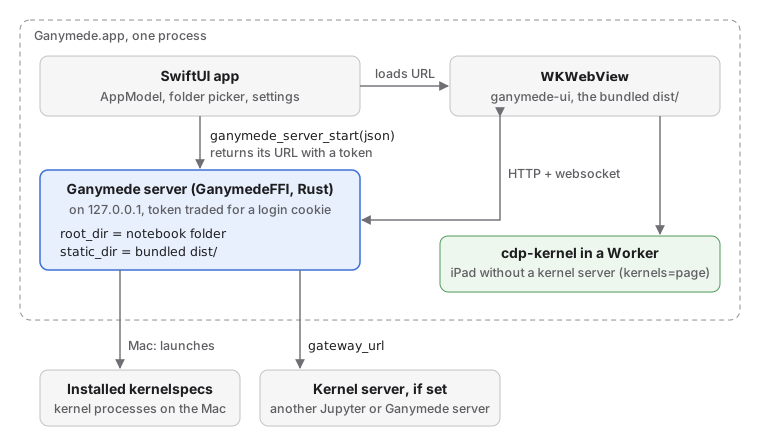
GanymedeFFI.xcframeworkiscrates/ganymede-ffibuilt for macOS and iOS. Its C API takes the server config as JSON (the keys ofganymede.toml), starts the server, and returns its URL with a token.ServerHost.swiftwraps it.AppModel.swiftstarts the server with the bundleddist/as the static site, reusing the last port so the page keeps its origin and itslocalStorage. On the Mac it serves/, and each window (WindowTarget.swift) loads the page with?open=a notebook's absolute path or?dir=a folder's, so any file opens without a restart. On iOS it serves the chosen notebook folder. The server trades the token in the URL for a login cookie.The Mac app imports the
org.jupyter.ipynbtype (.ipynb, conforming topublic.json) and declares it as a document type it edits, so the Finder offers it under Open With and it can be the default app for notebooks (Ganymede > Make Default App for Notebooks). Notebook windows are aWindowGroup(for: WindowTarget.self): File > Open… and Open Folder… open a window per target, or bring the one already showing it to the front. Files opened from the Finder come to the app delegate'sapplication(_:open:), which queues them inOpenRequests; the first notebook window to see the queue takes it. The window the app opened on nothing at launch shows the first file, and the others open withopenWindow(value:), which brings forward a window already showing one. With no notebook window open, each file gets a new one.Two sandboxed app extensions give notebooks a Quick Look preview and a Finder thumbnail (
apple/Sources/QuickLook). The preview showspreview.html, a page of its own (vite build --mode quicklook, about 5 MB) that renders the file with this app's notebook view and rendermime, read-only and with every output untrusted, in a web view that loads it through aganymede-preview:scheme handler: WebKit runs no module scripts fromfile:URLs, and there is no server. Its Content-Security-Policy loads nothing from the network. The thumbnail draws the first headings, code, and outputs (or the first PNG or JPEG) natively from the JSON, which is quicker than starting a web view.A notebook window acts as a document window (
DocumentWindow.swift). The page posts{ path, dirty }to thedocumentmessage handler (src/lib/native.ts) whenever the open notebook or its unsaved state changes. The window'sPageDocumentsets the proxy icon (representedURL) and the edited dot (isDocumentEdited), and adds the file to Open Recent (NSDocumentController). File > Save, and the Save / Don't Save prompts on close and quit, callwindow.ganymede.save()in the page withcallAsyncJavaScript. That save returns whether the notebook was saved, so a failed save keeps the window open. The close prompt comes from a stand-in window delegate that forwards everything else to SwiftUI's.Native chrome (#205): loaded with
chrome=native, the page shows only the notebook, with no sidebar or toolbar, so the app can draw its own. The page posts itsPageState(open path, unsaved edits, kernel and its status, cell type, the kernels to pick from, the backend) to thestatemessage handler whenever it changes, and the app runs commands withwindow.ganymede.command(id, arg): the page's own (PAGE_COMMANDSinsrc/lib/native.ts: open, new-notebook, run, interrupt, cell-type, …) or any notebook command by its id in the shortcuts table. In the app,PageModel(WebView.swift) holds the state and runs the commands, andPageCommandbuilds the script with its arguments JSON-encoded. The Mac app loads every window this way (#206, #207): its sidebar reads the folder from disk withFileManager, not the contents API, since its server is rooted at/on the same machine, and its toolbar and Cell and Kernel menus run the page's commands. The iPad (#208) and iPhone (#209) load it this way too, with sidebar paths relative to the notebook folder, where their server is rooted. The iPhone's root screen is that folder list and the notebook is pushed onto it; its page lives in aWebViewStore, which keeps theWKWebViewand its coordinator while the list shows, so going back doesn't reload the page and the list can run the page's commands.WebView.swifthandles what a browser would: links to other hosts open in the default browser, downloads ask where to save (the share sheet on iOS). The page's Settings, Keyboard Shortcuts and Connect post asettingsmessage naming a tab (showAppSettingsinnative.ts), and the app shows its own Settings there. The Shortcuts tab loads the page alone withview=shortcutsfrom the app's server, the notebook windows' origin, so a rebinding reaches them through local storage.apple/scripts/bootstrap.shdownloads the XCFramework from a ganymede release (or builds it from a ganymede checkout) and builds this repo'sdist/intoapple/build/, then generates the Xcode project. CI builds and tests both targets on macOS runners against the ganymede tag or commit pinned inGANYMEDE_REF(.github/workflows/ci.yml).
Where kernels run:
| Run kernels on (Settings › Kernels) | Mac | iPad and iPhone |
|---|---|---|
| This device | Kernelspecs installed on the Mac | The app's own |
| A remote with a server | That server, through Ganymede's gateway (gateway_url) | Same |
Both apps also run their own TypeScript kernel, as a kernel of their server: the page opens with ?kernels=server and sees one server with one list of kernels, so the execute endpoint, kernel lifetime and the kernel list cover the app's kernel as they do any other. The kernel runs in a hidden web view, the only place cells can reach the app's bridges, such as ganymede-device's device (#185).
Settings keep a list of remotes (Remote.swift): each has a name, an optional Jupyter or Ganymede server (its token in the keychain), and optional SSH (host or ssh-config alias, user, port), for terminals. One remote with a server can be chosen for kernels. The single kernel server setting of earlier versions moves to the first remote on launch.
iOS does not let an app launch processes, so without a kernel server the iPad's in-process Ganymede has only the app's own kernel. With a kernel server set, Ganymede forwards kernel requests to it, and lists the app's kernel after that server's. Notebooks stay on the device either way. On the Mac, an app opened from the Finder takes PATH from the login shell (LoginShell.swift) so kernelspecs that run node, deno or python3 start.
AppKernels.swift registers the app's kernelspec, cdp-browser, with the embedded server through ganymede-ffi's ganymede_kernel_register (Ganymede's in-app kernel design, ganymede#266) each time the server starts. The server then starts, messages, interrupts (over the control channel), restarts and stops the kernel like any other, through callbacks on its own threads; Swift takes each to the main thread and on to one hidden web view for the whole app, on kernel.html (src/kernel-host.ts), loaded from the server when the first kernel starts. That page runs each kernel with cdp-kernel's browser build, cells in a Worker, and posts what the kernel sends to webkit.messageHandlers.kernelHost; Swift hands it to the server with ganymede_kernel_deliver. Messages cross as Jupyter JSON strings, binary buffers as base64 (src/lib/kernel-relay.ts). Swift takes only main-frame messages from the server's origin. A restart keeps the kernel id, so each start gets a run number, which the page puts on everything it sends: a late message from the run before is dropped.
kernel.html comes from the service worker's precache, so after an app update the first kernel page can be the previous release's. Before it says it is ready, the page asks the worker to check for an update, and compares its release with the server's release.json (built with the page and left out of the precache); it loads again (once per web view session) when a newer worker takes control or the releases differ; Swift holds the kernels' starts until then (src/lib/kernel-page-worker.ts). After that the page stays on its release until the next session, since a reload would end the running kernels, but a newer worker still takes control of it at once and drops the old precache, so a later kernel start in that page can miss its own release's files (#534).
The kernels belong to the server, not to a window: a window's reload leaves them running, and the hidden web view lives inside whichever notebook page is in a window, since WebKit suspends one in none. When the kernel page's process ends (iOS ends it under memory pressure, #293), Swift reports each kernel lost and the server starts it again without counting a crash; a kernel that ends on its own counts as one. The server's shutdown asks each kernel to shut down, then stops it, so quit stops the server off the main thread, which answers for the app's kernel.
Native bridges for cells, such as the device package's (packages/device) device handler, belong on the kernel web view only, so nothing a notebook page renders can call them (#99). When the kernel page sees a device handler, it starts each kernel with the device package's preload (which installs globalThis.device in the cells' Worker), its webkitHost() and capabilities: { device: true }. AppKernels registers the device package's Swift DeviceBridge on that web view, so cells in the app get device (Device API lists its methods and is the user's guide), and learns each kernel's notebook from the server's start (JPY_SESSION_NAME) for the permission ledger. Each window's KernelHost.swift keeps what is the page's: renames and a notebook's declared capabilities, for the ledger (kernelRelay), and the remote device subset for server kernels' comm.
A native on-device kernel, cdp-kernel running in the app's process instead of the web view, is planned and not started.
Terminal/ holds the built-in terminal's pieces (#117): TerminalSurface, a SwiftUI view over SwiftTerm's TerminalView, and TerminalTransport, which each source of a shell implements. On the Mac, terminals live in the notebook window's bottom panel (#248): PanelController holds the window's terminals, its selection, whether the panel shows and its height, and BottomPanel draws a TerminalWindow per terminal as a tab. Hidden terminals stay in the view tree, so their sessions keep running; only the one on show has the keyboard. File > New Terminal adds one to the panel, and File > New Terminal Tab opens one as a tab of the window (#247). A JupyterTerminalTransport creates a terminal through /api/terminals on the app's own server, or on a remote's server, and speaks terminado's websocket protocol to it. Closing the terminal's tab deletes it. For a remote with SSH, ProcessTerminalTransport runs /usr/bin/ssh in a pseudo-terminal the app spawns (SwiftTerm's LocalProcess), so OpenSSH does everything it does in Terminal.app: ssh-config aliases, the agent, ProxyJump, and asking to trust a new host key. iOS can't run a process, so there SSHTerminalTransport speaks SSH in the app with Apple's swift-nio-ssh: a pseudo-terminal and shell on one session channel, signed in with the app's ed25519 key (SSHKey.swift, in the keychain), and host keys trusted on first use per remote (HostKeyStore). On iPad a terminal is its own scene (WindowGroup(for: TerminalRequest.self)); SwiftTerm's key row gives Esc, Ctrl, Tab and arrows on the software keyboard.
Editor/ is the text editor (#122). In the apps the page registers no editor of its own: its sidebar enables files that aren't notebooks when the app has an openFile message handler and the page uses the app's own server, and posts the file's path there. The app opens an EditorWindow (WindowGroup(for: EditorRequest.self); a full-screen cover on iPhone). EditorDocument reads and saves the file with TextFileClient, through /api/contents with format=text, and polls its last_modified every few seconds: a change on disk reloads the file, or, with unsaved edits, shows a bar to keep either version. A save sends last_modified, which Ganymede checks (409 on a conflict), and checks it first itself, since jupyter_server doesn't. The text view is the system's (CodeTextView, TextKit 1), so find, undo, input methods, dictation and accessibility come with it. Neon highlights it with tree-sitter grammars (Highlighting), coloring capture names with system colors that follow light and dark. CodeEditing is the typing help, as plain functions on the text that both platforms' delegates call: Return keeps the indent and adds a level after an opener, brackets and quotes pair, and backspace deletes an empty pair. The indent is the file's own (tabs, or 2 or 4 spaces), else the language's. LineNumbers draws the line numbers: an NSRulerView on the Mac, a gutter inside the text view on iOS.
Tests
Unit tests (Vitest, jsdom) sit next to the code as *.test.ts(x). The Playwright suite in e2e/ runs the built app against a real ganymede serve with cdp-kernel's cdp-node kernelspec, and no Python. Swift tests are in apple/Tests/. See the README for the commands.