Ganymede's app
ganymede-ui is Ganymede's own notebook app: JupyterLab's notebook in a smaller, Mac-style window. It is a client of the same API as JupyterLab and VS Code, so it runs against Ganymede, against jupyter_server, or with no server at all. It is early software; its issues list what doesn't work yet.
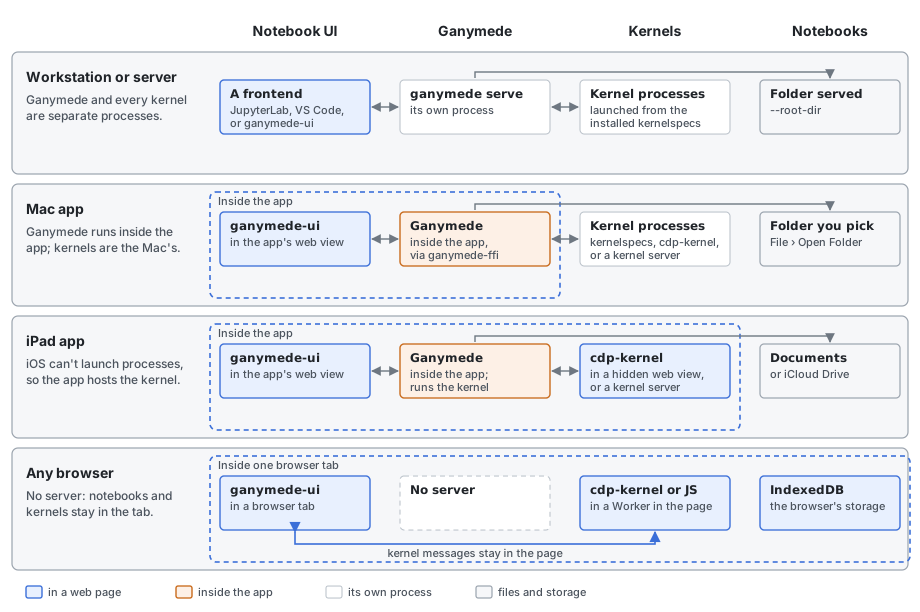
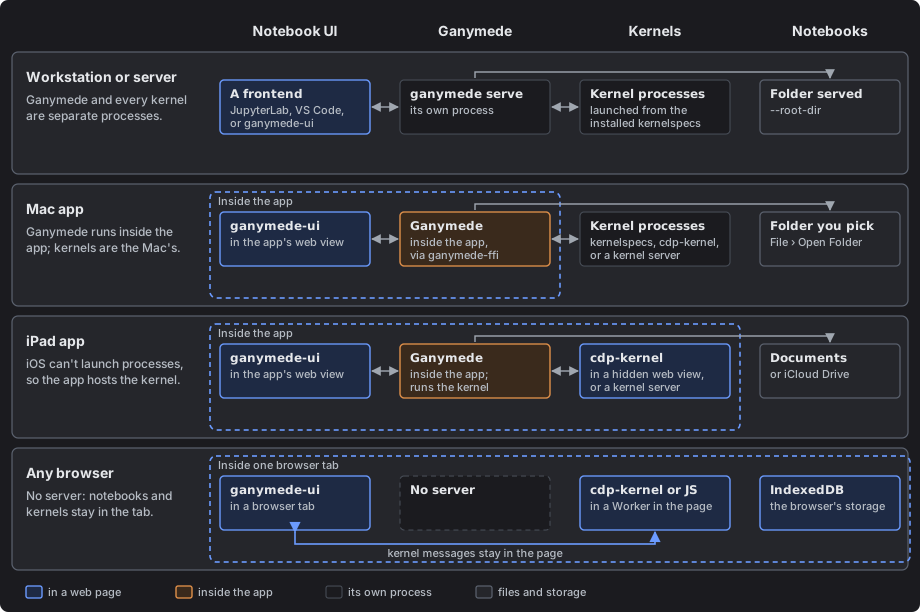
There are three ways to run it, and they differ in where notebooks live and where kernels run:
| Notebooks | Kernels | |
|---|---|---|
ganymede ui | The folder you serve | Your installed kernelspecs |
| Mac app | A folder you pick | The Mac's kernelspecs and cdp-kernel in the app, or a kernel server |
| iPad app | The app's Documents, or a folder you pick | cdp-kernel in the app, or a kernel server |
| This browser | The browser's storage | cdp-kernel or JavaScript, in the page |
In a browser, from Ganymede
ganymede ui install            # once: the default release, from GitHub
ganymede ui                    # serves it at / and opens it in the browser
ganymede ui list               # installed versions; --json too
ganymede ui remove 0.1.0
ganymede ui install --version 0.1.0   # an older release
ganymede ui is ganymede lab for this app: serve with the newest installed version as --static-dir, the same flags and port fallback, and the URL of / printed and opened. The token in the URL becomes a login cookie, and the app connects on it.
ganymede ui install downloads ganymede-ui-X.Y.Z.zip from the release on GitHub and checks its SHA-256: pinned in the binary for the default version, otherwise the line in that release's SHA256SUMS. It unpacks to ui/<version>/ under Ganymede's data directory (ganymede info shows it), within the same size limits as JupyterLab. GANYMEDE_UI_URL points at a mirror laid out as <url>/v<version>/<file>.
The Mac, iPad and iPhone app
The app runs Ganymede inside its own process and shows ganymede-ui in a web view, so there is nothing else to install or start. It is built from ganymede-ui's apple/ folder and isn't in the App Store:
- Mac (macOS 26 or later, Apple silicon). Each ganymede-ui release attaches
Ganymede-macOS-<version>.zip, an app signed with a Developer ID and notarized. Unzip it and moveGanymede.appto Applications. - iPad and iPhone (iPadOS and iOS 26 or later). Each release goes to TestFlight for a small group of internal testers; it isn't open to others yet. Otherwise build it from source with Xcode; the
apple/README has the steps.
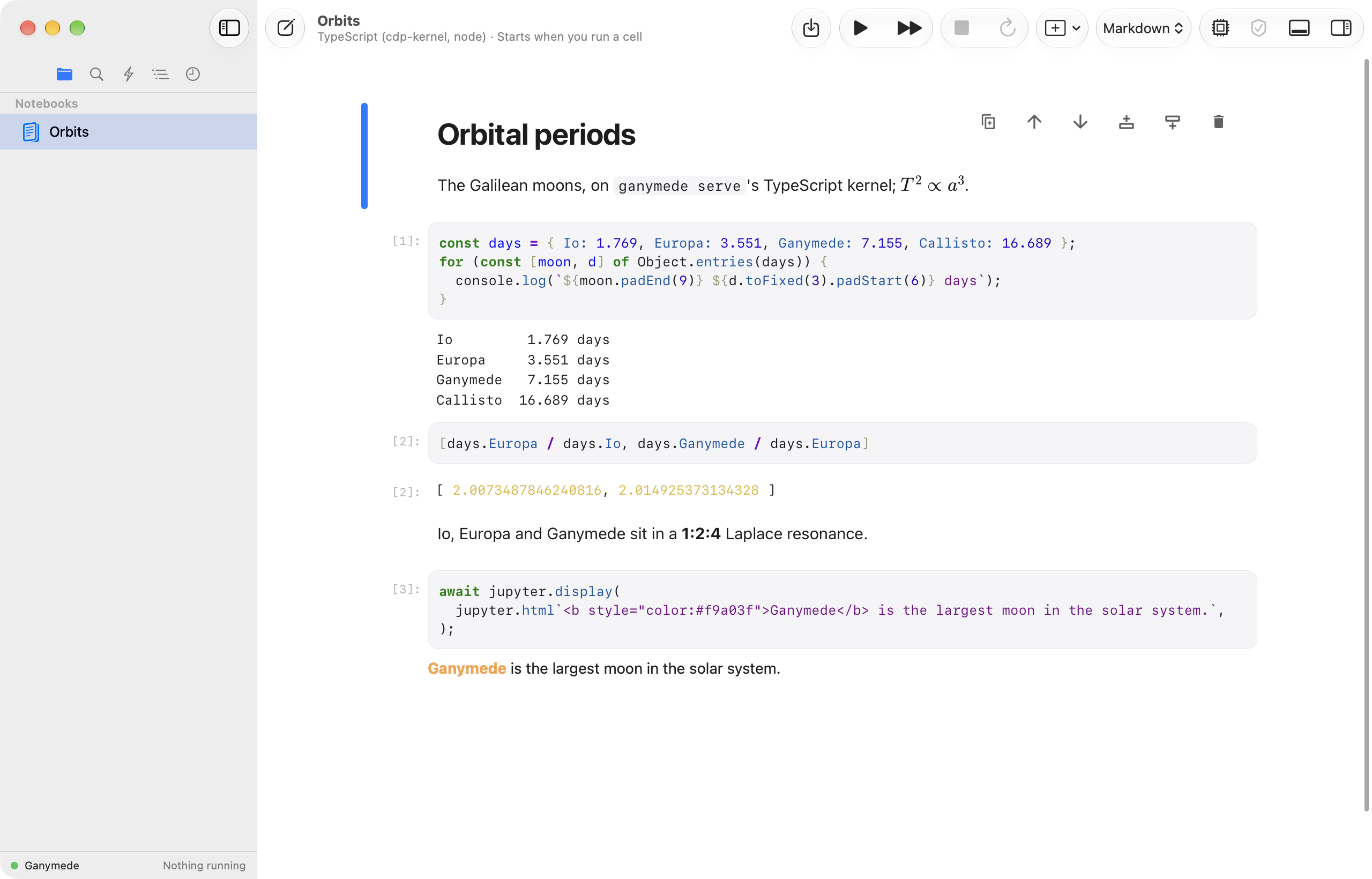
On the Mac, File › Open Folder… (⇧⌘O) picks the notebook folder, and kernels are the kernelspecs installed on the Mac, as with ganymede serve. The app takes PATH from your login shell, so kernels that run node, deno or python3 start. Quitting shuts every kernel down.
On the iPad, notebooks live in the app's Documents folder (On My iPad in the Files app) or a folder you pick, such as one in iCloud Drive. iOS doesn't let an app start kernel processes, so the app runs cdp-kernel's TypeScript kernel itself. Both apps run it in a hidden web view as a kernel of the app's server (In-app kernel): it is in the server's kernel list and outlives a window's reload.
TypeScript cells in the app's own kernel, on the Mac, iPad or iPhone, get a device global for native features such as the clipboard; see Device API. The device API is macOS and iOS only: no other platform has an app to answer it. In a browser, the notebook page answers a few methods that need no permission; see In a browser.
Kernels on another machine
Both apps can run kernels on another Jupyter or Ganymede server instead: Settings (⌘,) on the Mac, the server button on the iPad. Enter the server's URL and token. Notebooks stay on the device; only kernels run there, through Ganymede's gateway. To serve kernels from a Mac on your network, see Security for reaching it safely; ganymede serve --ip 0.0.0.0 alone sends the token in clear.
With no server
In the connect sheet, This browser keeps notebooks in the browser's storage (IndexedDB) and runs kernels in Workers in the page: cdp-kernel's TypeScript kernel, or JupyterLite's JavaScript kernel. Nothing is sent anywhere. Ganymede server with Run kernels in this page keeps notebooks on the server and still runs kernels in the page. The apps don't use it: they run their kernel as a kernel of their server.
Using it
- Toolbar. Run, insert, kernel picker, interrupt and restart, Trust Notebook, and Download Notebook.
- Shortcuts. JupyterLab's defaults. Press H in command mode, or Help › Keyboard Shortcuts on the Mac, for the list; bindings can be changed there and are kept in the browser.
- Trust. Outputs of a notebook you didn't run are sanitized until you trust it, as in JupyterLab; on Ganymede, trusting signs the file. The browser-only mode keeps no signatures.
How the app is built is on ganymede-ui's architecture page.